Windows 11 Home or Windows 11 Pro?
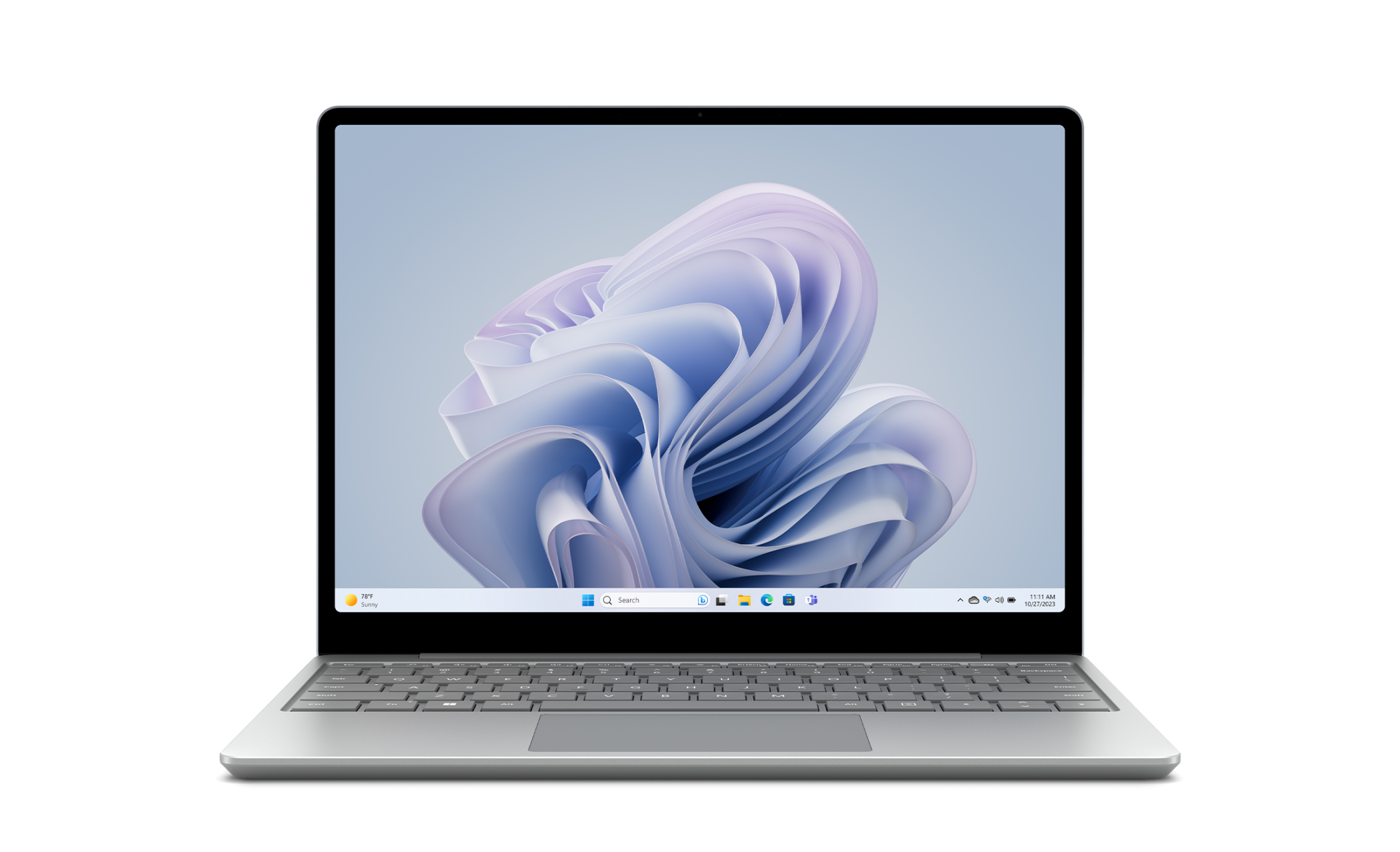
Both editions share the same interface, the same app compatibility and the same update schedule. The difference is a set of professional features.
- Windows 11 Home – everything a private user needs: the redesigned Start menu and taskbar, Snap Layouts, Microsoft Store, Windows Security and Windows Update.
- Windows 11 Pro – adds BitLocker full-disk encryption, Remote Desktop as a host, Hyper-V, Group Policy management and domain join. If you work from home for an employer, carry client data on the device, or want to reach your desktop from elsewhere, Pro pays for itself.
Will Windows 11 run on your computer?
Microsoft’s requirements are a supported 64-bit processor, 4 GB of RAM, 64 GB of storage, UEFI with Secure Boot and TPM 2.0. In practice, most machines built from around 2018 onwards qualify. TPM is frequently present but switched off in the firmware – if the compatibility check fails, that is the first thing worth looking at.
Why upgrade from Windows 10
Microsoft ended free security updates for Windows 10 in October 2025. An unpatched operating system connected to the internet is a genuine risk, not a theoretical one. Beyond security, Windows 11 brings meaningful day-to-day improvements: window snapping that actually helps, a cleaner Settings app, better handling of multiple monitors and noticeably improved battery behaviour on laptops.
Installation in three steps
One: download the official Microsoft installation media using the link in your email. Two: run the installer and choose whether to keep your files and applications or start fresh. Three: enter your product key when prompted and let Windows activate. Allow half an hour, take a backup beforehand, and contact us if anything looks unfamiliar.